Crop image
Crop a JPEG, PNG, or WebP to a rectangular selection you control. Keep only the pixels you need for thumbnails, social frames, product close-ups, or a tighter composition — without stretching the image.
Static JPEG, PNG, WebP · up to 25 MiB · 8192 px per edge · 16 MP. Animated images are not supported.
How to use
- Choose a static image. The selection starts inside the full frame so you can tighten it immediately.
- Drag the selection or its corner; use arrow keys or the Left/Top/Width/Height fields when you need pixel-accurate framing.
- Pick an output format if needed, export the selected rectangle, and download it — dimensions match the selection, with no stretch.
When to crop an image
Use crop when the subject is already the right size but the frame is too wide, tall, or cluttered. Typical cases include cutting a square avatar from a landscape photo, framing a product for a listing, trimming empty margins before upload, or matching a platform’s aspect ratio without resampling the whole image. Prefer resize when you need new pixel dimensions for the full picture; prefer convert when you only need a different file format.
How cropping works on this site
BananaImage runs crop entirely in your browser. Choose a static JPEG, PNG, or WebP (up to 25 MiB, 8192 px per edge, 16 megapixels). Drag the selection or its corner, nudge with arrow keys (Shift moves ten pixels), or type exact Left, Top, Width, and Height values. Export keeps only that rectangle at its true pixel size. You can also pick JPEG, PNG, or WebP for the download; PNG and WebP keep transparency inside the selection, while JPEG needs an explicit background if the source is transparent. Nothing is uploaded, and closing the page clears the local result.
Worked example
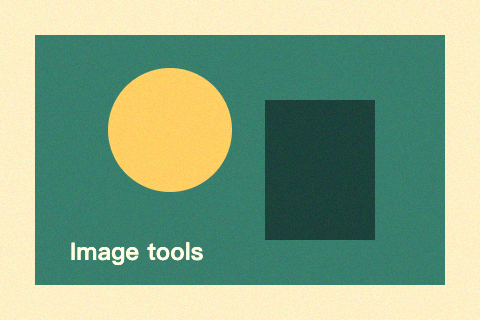
From the 480 × 320 PNG, set Left 90, Top 65, Width 120, Height 80. The export is a 120 × 80 crop of that rectangle: same pixels, no resampling to a different aspect ratio.

Common questions
How do I crop without a mouse?
Tab to the crop selection and use arrow keys to move it, or tab to its corner and use arrows to resize. Shift changes the step to ten pixels. The Left, Top, Width, and Height fields are always available for exact values.
Will the crop change resolution or transparency?
The result has exactly the selected pixel dimensions — cropping does not upsample or stretch. PNG and WebP retain transparent pixels inside the selection; JPEG requires a white or black background if the source contains transparency. Canvas export also removes original metadata.
Is cropping the same as resizing?
No. Crop removes pixels outside a rectangle you choose. Resize changes width and height of the whole image (with or without locked aspect ratio). If you need both a tighter frame and a specific final size, crop first here, then use Resize image.
Does my image leave this browser?
No. Crop runs locally with no upload, account, or credits. The processed file stays in this tab until you download it or close the page.
Which formats can I crop and export?
Inputs are static JPEG, PNG, or WebP within the size limits above. Animated images are rejected. On export you can keep the source format or switch among JPEG, PNG, and WebP; choose a JPEG background explicitly when the source has transparency.